Your PC runs the game, technically. But the frame rate stutters, textures pop in late, and the “recommended settings” feel like a suggestion from someone with a better computer. Before spending money on new hardware, there is a free upgrade available: optimization. If you are asking how much does it cost to optimize PC settings for smoother gameplay, the answer is nothing — just an hour of methodical tweaking. This guide covers the settings and system changes that actually improve performance, in order of impact, and the myths that waste your time.
The mindset: optimization is about spending your PC’s budget wisely. Every system has finite CPU, GPU, and memory; settings decide where it goes. The goal is not maximum everything — it is maximum smoothness for the visuals you actually notice. A methodical pass through these steps typically gains 20–40% performance, often the difference between stuttering and smooth.
In-Game Settings: The Big Wins
Start with the settings that cost the most performance for the least visual gain. Resolution is king: dropping from 4K to 1440p nearly doubles frame rates, and with good upscaling (DLSS/FSR) the visual difference is small. Shadows are the next biggest lever — ultra shadows cost enormously for subtle gains; high or medium looks nearly identical in motion. Volumetric fog, ambient occlusion, and ray tracing round out the expensive list; reduce these first.
Keep high: textures (if you have enough VRAM, they cost little performance), anisotropic filtering (nearly free visual improvement), and anti-aliasing via DLSS/FSR (which improves both looks and speed). Use the game’s built-in benchmark or a consistent test scene, changing one setting at a time — otherwise you will never know what helped. Cap your frame rate slightly below your monitor’s refresh rate for consistency; uncapped frame rates cause the stuttering that feels worse than lower-but-stable FPS. Making an old laptop run faster covers the same principles for aging hardware — optimization is optimization, whatever the machine.
Windows and Driver Optimization
Update GPU drivers — not just for new features, but because driver updates routinely include per-game optimizations worth 5–15%. Enable hardware-accelerated GPU scheduling and variable refresh rate in Windows display settings. Set your power plan to High Performance (or Ultimate Performance); the default Balanced plan throttles hardware to save power you do not need to save while gaming. Disable Windows Game Bar and background recording unless you use them — they cost performance silently.
Close the obvious hogs: browsers with dozens of tabs, Discord hardware acceleration (toggle it off in Discord settings — it causes stuttering on many systems), RGB software, and updaters. Check Task Manager’s Startup tab and disable everything non-essential; a clean boot baseline makes troubleshooting easier. The CISA’s guidance on system updates doubles as performance advice — updated systems run better and safer. For the full picture on casual gaming needs, the best video games for casual players run well on modest hardware precisely because they are designed within tighter budgets.
What About “Optimization” Software?
Skip it. Game boosters, registry cleaners, and RAM optimizers either do nothing or actively harm performance — Windows manages memory better than third-party tools, and “boosters” that kill background processes create instability. The legitimate tools are built in: Task Manager, Settings, and your GPU control panel. Anyone selling optimization software is selling placebo with a subscription.
Hardware Tweaks That Cost Nothing
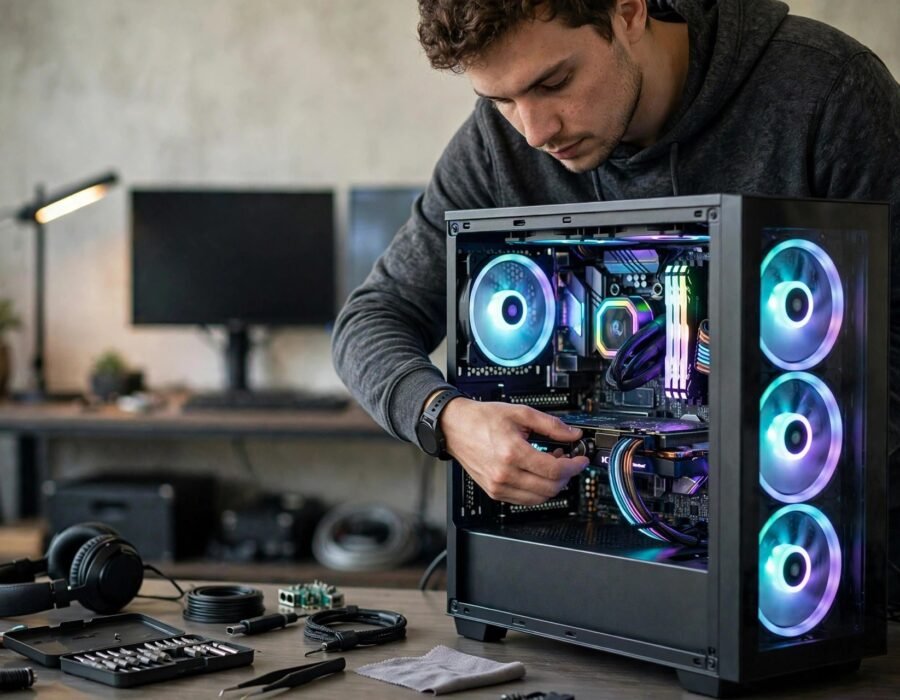
Thermals are free performance: dust-clogged coolers cause thermal throttling, silently cutting speeds. Clean filters and fans, verify airflow direction (front/bottom intake, rear/top exhaust), and monitor temperatures — sustained 90°C+ means throttling. Enable XMP/DOCP in BIOS for your RAM; memory running at half speed because XMP is off is the most common free performance left on the table, worth 5–15% in CPU-bound games.
Storage matters for smoothness if not FPS: games on an SSD load faster and stutter less than on spinning drives — moving your most-played titles to SSD is the best storage upgrade. Keep 15–20% free space on your system drive; full drives slow everything. And the NIST’s computing guidance underscores a boring truth: the most reliable performance gains come from maintenance, not magic — clean, cool, updated systems simply run better.
BIOS-Level Tweaks Worth Knowing
A few BIOS settings deliver free performance most users never touch. Enable XMP/DOCP for RAM (mentioned earlier — worth repeating because it is the single most overlooked setting), enable Resizable BAR / Smart Access Memory (lets the CPU access the GPU’s full memory, worth 5–10% in supported games), and disable CPU power limits that throttle performance on some motherboards. Update your motherboard BIOS occasionally — newer versions improve memory compatibility and CPU performance. These sound intimidating but are menu toggles, not surgery; the motherboard manual (or a five-minute video for your specific board) covers each one.
When to Stop Optimizing and Upgrade
Optimization has limits, and recognizing them saves frustration. If you have done everything here and still cannot hit your target, the bottleneck is hardware — identify it with monitoring tools (GPU at 100% means GPU-bound; CPU at 100% means CPU-bound) and upgrade the bottleneck specifically. The used market offers tremendous value: previous-generation GPUs often deliver 80% of current performance at half the price. And sometimes the honest answer is that a ten-year-old system has earned retirement — no amount of settings tweaks makes a 2014 integrated GPU run 2024 games well. Optimize first, upgrade smart, and never let perfect be the enemy of playable.
The Bottom Line
Optimizing PC settings for smoother gameplay costs nothing and typically gains 20–40%: lower resolution with upscaling, reduce shadows and volumetrics, update drivers, enable high-performance power plans, close background hogs, clean thermals, and enable XMP. Skip optimization software — it is placebo. Do the methodical work once, save a settings profile per game, and enjoy the free performance. Your hardware was faster than you thought; it was just spending its budget badly.
Frequently Asked Questions
What single setting improves FPS the most?
Resolution — dropping from 4K to 1440p (ideally with DLSS/FSR upscaling) nearly doubles frame rates. After that: shadows, volumetrics, and ray tracing. These four settings account for the majority of the performance cost in most games.
Do game boosters actually work?
No. Reputable testing consistently shows game boosters provide negligible or zero benefit, and some cause instability. Windows manages resources better than third-party tools. Close background apps manually and use built-in settings instead.
Should I overclock for more FPS?
Mild GPU overclocking can gain 5–10% free performance if thermals allow, but the risk-reward is poor for most users — instability and heat for single-digit gains. Optimization (settings, drivers, thermals) gains far more with zero risk. Overclock only after maxing the free stuff.
Does RAM speed affect gaming?
Yes, modestly — enabling XMP/DOCP so RAM runs at its rated speed (not the motherboard default) gains 5–15% in CPU-bound games. It is the most overlooked free performance setting. Capacity matters too: 16GB is the current sweet spot, 32GB for heavy multitasking.
Why does my game stutter even at high FPS?
Usually frame-time inconsistency, thermal throttling, shader compilation stutter (common in new games, improves with patches), or storage bottlenecks. Cap frame rates for consistency, ensure the game is on an SSD, update drivers, and check temperatures — stuttering has specific causes with specific fixes. Work through them systematically instead of guessing.