
That “password reset” email you didn’t request. Logins from cities you’ve never visited. Friends asking why you sent them a weird link. These are the classic signs your email has been hacked — and since your email controls password resets for everything else, it’s the account attackers want most. Here’s how to confirm, recover, and lock it down.
How Do I Know If My Email Has Been Hacked?
Check for these red flags: password reset emails you didn’t trigger, login alerts from unfamiliar locations, sent emails you didn’t write, new forwarding rules or filters you didn’t create (attackers use these to hide their activity), contacts receiving spam “from you,” and being locked out after a password change you didn’t make. Check haveibeenpwned.com to see if your address appeared in known breaches — if yes, assume the password is compromised.
Confirm It: The 5-Minute Forensic Check
- Review recent activity: Gmail → bottom-right “Details” → “Show all” — look for unfamiliar IPs/locations. Outlook → account.microsoft.com → Security → Sign-in activity.
- Check forwarding rules: Gmail → Settings → Forwarding — attackers add hidden forwards to receive copies of your mail. Delete anything you didn’t create.
- Check filters: Gmail → Settings → Filters — look for filters auto-archiving or deleting security emails.
- Check connected apps: Remove any third-party app access you don’t recognize — these can read your mail indefinitely.
- Check sent folder and trash: Attackers often delete their tracks, but trash sometimes tells the story.
The Recovery Checklist (Do In This Order)
1. Change the password from a clean device (not one that might have malware) — use a long, unique passphrase. 2. Enable 2FA immediately with an authenticator app — this stops the attacker even if they have the old password. Our 2FA setup guide walks through it. 3. Sign out all sessions (Gmail: Details → “Sign out all other web sessions”). 4. Remove malicious forwards, filters, and connected apps found above. 5. Check recovery options — attackers change the recovery email/phone to lock you out permanently; verify they’re yours. 6. Scan your devices for malware that may have captured the password.
Then Secure Everything Connected to That Email
Your email is the master key — every account with “forgot password” tied to it is at risk. Priority: change passwords on banking, then social media, then everything else, using a password manager so each is unique. Watch for identity theft signs (unfamiliar accounts, credit inquiries) and consider a credit freeze — it’s free and the FTC recommends it after any email compromise.
How Attackers Get In (So You Can Close the Door)
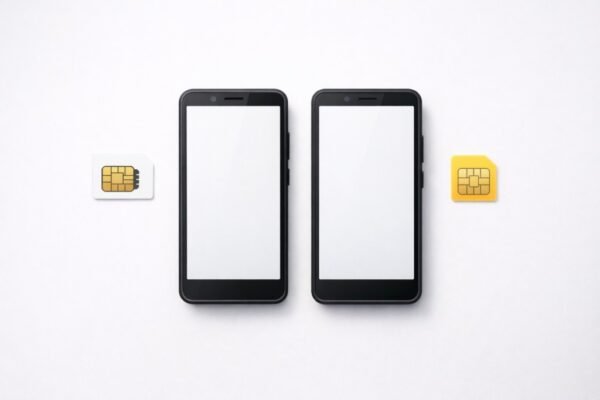
The top 4 email compromise methods: 1) Credential stuffing (80%+): your password from an old breach tried on your email — unique passwords per site (password manager) kills this entirely. 2) Phishing: fake “security alert” emails harvesting your login — check the sender domain carefully and never log in via email links (see our scam detection guide). 3) Malware: keyloggers on your device — keep OS updated, don’t install sketchy software. 4) SIM swapping: porting your number to intercept SMS codes — set a carrier port-out PIN and prefer authenticator apps over SMS. The pattern: it’s never “hackers broke the encryption” — it’s always credentials, phishing, or your devices. Defend those three and email is safe.
Business Email Compromise (The Expensive Version)
BEC scams cost US businesses $2.7 billion yearly (FBI) — and they start with a hacked email. How it works: attacker compromises a vendor’s (or your) email, then sends “updated wire instructions” for a real invoice — money goes to the attacker. Defenses: 1) Verify payment changes by phone — call a known number, not the one in the email. 2) Flag external emails — most email systems can tag “[EXTERNAL]” on outside mail; spoofed “CEO” emails stand out. 3) Dual approval for wire transfers over a threshold. 4) DMARC/SPF/DKIM on your domain — prevents spoofing of your address (ask your IT person or host). If you handle money by email: these four are non-negotiable — one prevented wire fraud pays for a decade of vigilance.
The Recovery Kit (Prepare Before You Need It)
Build this now, while you’re calm: 1) Printed backup codes for email + bank — in a safe or with a trusted person. 2) A recovery email on a different provider (Gmail main → Outlook recovery) — if one provider locks you out, the other receives the reset. 3) Your carrier’s port-out PIN set (see above). 4) A password manager with emergency access configured (1Password/Bitwarden family plans include this — your designated person can access after a waiting period). 5) Know the recovery URLs by heart: account.google.com/signin/recovery, account.live.com/acsr — bookmarked, not Googled (phishing risk). Test it once: log out everywhere and recover using only your kit — the gaps you find now are the disasters you avoid later.
Securing a Shared or Family Email Account
Family-shared emails (“thesmiths@gmail.com”) are security nightmares: multiple users, shared passwords, no 2FA (whose phone gets the code?). The fix: 1) Migrate to individual accounts — Gmail’s family features (shared calendars, Google One storage sharing) replace 90% of sharing needs. 2) For the transition: enable 2FA with backup codes printed for each user, use a password manager’s shared vault (not a sticky note). 3) Forwarding, not sharing: auto-forward relevant mail to individual accounts instead of sharing one inbox. Why it matters: shared accounts can’t be secured (no accountability), can’t use 2FA properly, and one person’s phishing mistake compromises everyone. The exception: role accounts (info@business.com) — these get 2FA via authenticator + printed backup codes in a safe, accessed by designated people. Personal email should be personal.
How Hackers Actually Get Your Email Password
Forget Hollywood hacking — real email compromises come from boring, effective methods. Phishing (fake login pages harvesting your credentials) accounts for the largest share. Next is credential stuffing: trying passwords leaked from other sites’ breaches, which works because people reuse passwords. Then malware (keyloggers from sketchy downloads), and finally SIM-swapping to intercept SMS-based password resets.
Notice what’s missing: brute-forcing your password by guessing. Modern services lock accounts after failed attempts, making guessing impractical. Attackers don’t break in — they trick you into handing over the keys, or reuse keys you left at other doors.
This is why the defenses work: unique passwords defeat credential stuffing, 2FA defeats phishing (the phisher gets your password but not your code), and skepticism about unexpected login prompts defeats most phishing. Each defense maps to a specific attack — layered, they cover nearly everything.
Frequently Asked Questions
What is credential stuffing?
Automated login attempts using username/password pairs stolen from other breaches. It works because ~65% of people reuse passwords. Unique passwords per site make you immune — this is the strongest argument for a password manager.
How do I recognize a phishing email?
Check the sender’s actual address (not just the display name), hover over links to preview URLs, look for urgency/threats, and note that legitimate companies never ask for passwords via email. When in doubt, go to the site directly instead of clicking.
Can someone hack my email just by knowing my address?
No — the address is public by design. They need your password (via phishing, breaches, or guessing weak ones) or access to your recovery methods. An email address alone grants nothing.
What is SIM-swapping and how do I prevent it?
Attackers convince your carrier to transfer your number to their SIM, intercepting SMS codes. Prevent it with a carrier PIN/passcode, using authenticator apps instead of SMS 2FA, and not publicizing your number.
Should I pay for breach monitoring services?
Free options (haveibeenpwned.com alerts, Google/Apple built-in breach alerts, credit freezes) cover the essentials. Paid services add convenience, not fundamentally better protection. Freeze your credit — it’s free and the single most effective anti-identity-theft step.
How often should I change my email password?
Only when there’s reason — a breach, suspected compromise, or reuse elsewhere. Forced periodic changes lead to weaker passwords (Password123 → Password124). A strong unique password + 2FA beats rotation.
The bottom line
Unexpected password resets, unknown logins, and hidden forwarding rules mean your email is compromised — change the password from a clean device, enable authenticator-app 2FA, kill all sessions, and remove malicious forwards/filters. Then rotate passwords on everything tied to that email. And going forward, a unique password plus 2FA on your email is the single most important security habit you can have — because whoever controls your email controls your digital life.

2 Comments