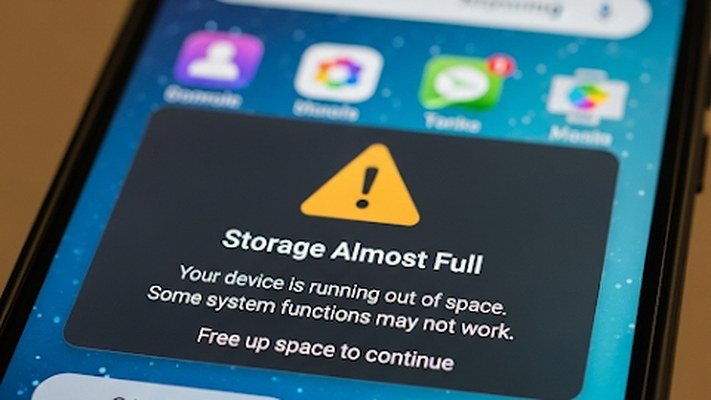
You haven’t installed anything in months, yet your phone screams “Storage Full” again. The invisible culprits: cached data, “Other/System Data” bloat, duplicate photos, offline downloads, and message attachments — not your apps. Here’s where your gigabytes are actually going and how to reclaim them.
Why Does My Phone Storage Fill Up So Fast Even Without New Apps?
Apps grow silently. Spotify caches playlists, Netflix hoards downloads, WhatsApp saves every photo and video anyone sends you, and browsers accumulate gigabytes of cached data. On iPhones, the mysterious “System Data” category (often 10–30GB) is cached files iOS never cleans aggressively. On Android, it’s app caches plus thumbnail databases. Your photo library also quietly doubles — burst shots, screenshots, and duplicate downloads pile up.
iPhone: Reclaim Space Fast
- Offload unused apps (Settings → General → iPhone Storage → enable “Offload Unused Apps”) — removes the app but keeps documents. Saves gigabytes with zero risk.
- Review large attachments (Settings → General → iPhone Storage → Review Large Attachments) — delete old videos from Messages. This alone often frees 5–15GB.
- Clear Safari cache (Settings → Safari → Clear History and Website Data).
- Check System Data — if it’s over 25GB, back up and restore the phone; it compacts the system cache dramatically.
- Optimize photos — enable iCloud Photos with “Optimize iPhone Storage” to keep thumbnails locally and full-res in the cloud.
Android: Reclaim Space Fast
- Clear app caches (Settings → Storage → Apps → sort by size → Clear Cache on the big ones). Never “Clear Data” unless you want to log in again.
- Files by Google — the “Clean” tab finds duplicate files, blurry photos, old downloads, and memes automatically. Genuinely excellent.
- WhatsApp/Telegram: Check their storage usage in-app — media from group chats is often the #1 space hog. Disable auto-download.
- Delete downloaded Netflix/Spotify content you’ve already watched.
The Nuclear Option: When Nothing Else Works
If you’ve cleared caches and you’re still full, the nuclear option actually works: back up the phone completely, factory reset it, and restore. This compacts years of accumulated system cruft — people routinely recover 15–30GB this way. It takes an evening (backup, reset, restore, re-login to apps), but it’s the definitive fix for “System Data”/”Other” bloat that won’t clear any other way. Do it once a year as maintenance. Before any reset, follow our phone backup checklist — the same steps protect you here.
Stop It Filling Up Again
Prevention beats cleanup: stream instead of downloading (Spotify/Netflix offline content is the fastest-growing storage category), disable auto-download in messaging apps, use cloud photo storage with optimized local copies, and do a 10-minute storage review monthly. If you’re constantly fighting for space, your next phone needs more storage — see ways to add storage without buying new, and our cloud storage explainer for the offload strategy.
The Hidden Hogs: App-by-App Breakdown
Where gigabytes actually hide: 1) WhatsApp/Telegram: 5–20GB typical — every group-chat video auto-downloaded. Fix: Settings → Storage and Data → disable auto-download; clear “larger than 5MB” files. 2) Spotify: 3–10GB of offline playlists — audit Downloads, keep only what you actually play offline. 3) Netflix/YouTube: 5–15GB of downloads — delete watched content (it doesn’t auto-delete). 4) Podcasts: 2–8GB backlog — cap auto-downloads to 3 episodes. 5) Browser cache: 1–5GB — clear quarterly. 6) Email attachments: 1–3GB — the Gmail/Outlook offline cache grows silently. The 80/20: messaging media + offline downloads = 80% of reclaimable space. Attack those two first; the rest is rounding.
iCloud vs. Google Photos: The Full Comparison
For the photo offload decision: iCloud Photos: seamless on iPhone, 50GB $0.99/month — but the free 5GB is a joke and Windows integration is clunky. Google Photos: 15GB free (shared), excellent search (“show me beach photos”), works everywhere — but full-res originals count against quota (the old “free unlimited” is gone). Amazon Photos: free unlimited photo storage for Prime members (video excluded) — the best free deal, worst apps. The verdict: iPhone users → iCloud (frictionless); Android → Google Photos (best free tier); Prime members → Amazon Photos as the archive (free unlimited). Whichever: enable it before you’re full — uploading 50GB on a full phone is its own ordeal. See our cloud storage guide for the complete breakdown.
When to Just Buy More Storage (The Honest Math)
Sometimes the answer isn’t management — it’s capacity. The math: iPhone 128GB → 256GB costs ~$100 more at purchase. That’s $100 once vs. hours of storage Tetris over 3 years + a $2.99/month iCloud plan ($108 over 3 years). Buy more storage when: you shoot lots of video (1 min of 4K = 400MB), you keep phones 3+ years (needs grow), or you’ve fought the “Storage Full” warning twice. The tiers: 128GB is the new 64GB (tight by year 2); 256GB is the comfortable minimum for most; 512GB for creators. Android with microSD: 128GB + $15 SD card = the budget answer (see our storage expansion guide). Never again: the base storage tier — manufacturers price it to punish.
The Annual Storage Audit (30-Minute Ritual)
Once a year, do the deep clean: 1) Photos: delete screenshots older than 30 days, blurry shots, and duplicates (use the phone’s duplicate detection — iOS 16+/many Androids have it built in). 2) Apps: sort by size, delete anything unused in 90 days (see our offloading guide). 3) Downloads folder: nuclear option — if you haven’t opened it in a month, you don’t need it. 4) Messages: delete threads older than a year (after archiving the meaningful ones). 5) Offline content: clear all downloads, re-download only what you’ll use this month. Typical recovery: 15–30GB. Schedule it: New Year’s Day, your birthday, tax day — anchor it to something you’ll remember. 30 minutes yearly beats 3 hours of panic when the “Storage Full” warning hits at the worst moment.
Google’s Files app documentation walks through the automated cleanup features — including the “Clean” tab suggestions that safely remove duplicates, blurry photos, and old memes without you reviewing each file. It’s the fastest legitimate cleanup tool on Android.
iPhone vs. Android Storage Management Differences
iPhones and Androids handle storage pressure differently. iPhones offer Offload Unused Apps (removes the app, keeps data) and iCloud-optimized photos automatically, and iOS aggressively manages the “System Data” category — but give you less manual control. Android offers more granular tools: per-app cache clearing, Files by Google’s cleanup suggestions, and adoptable/SD storage on many models.
The practical difference: iPhone storage management is more automatic but more opaque — when iOS says “Other” is 20GB, your options are limited (usually an iOS update or restore shrinks it). Android lets you surgically clear caches and move files, but requires more manual effort.
Whichever you use, the 80% rule applies: phones get sluggish when storage exceeds ~85% full, because the OS needs working space. Treat 80% full as your action threshold, not 99%.
Frequently Asked Questions
What is ‘Other’ storage on iPhone?
System Data (formerly ‘Other’) includes caches, logs, Siri voices, and update files. It grows over time and often shrinks after iOS updates. If it’s enormous (20GB+), updating iOS or restoring from backup usually clears it.
Why does Android say ‘insufficient storage’ when I have space?
Usually the system partition is full while user storage shows free space, or a single large app update needs contiguous space. Clear the Play Store cache, restart, and free an extra 1–2GB beyond what you need.
Do deleted photos still take up space?
For 30 days, yes — both iPhone (Recently Deleted album) and Google Photos (Trash) retain deleted photos recoverably. To free space immediately, empty the trash/deleted album manually.
How much storage do I actually need in 2026?
128GB is the practical minimum for most users; 256GB for photo/video heavy users. 64GB phones in 2026 require constant management — avoid them unless usage is truly minimal.
Does cloud backup free up phone storage automatically?
Only with optimization enabled: iPhone’s Optimize iPhone Storage (Settings → Photos) replaces full-res images with thumbnails; Google Photos’ Free Up Space removes backed-up originals. Backup alone, without these settings, doesn’t free space.
Why do apps get bigger over time?
Cached data, downloaded content, and app updates accumulate. Social apps are the worst — TikTok and Instagram can each exceed 2–3GB with cache. Periodic delete-and-reinstall resets them to base size.
The bottom line
Your storage isn’t filling from new apps — it’s caches, message attachments, offline downloads, and system bloat. Attack the big three (Messages attachments, WhatsApp media, System Data), enable offloading and cloud photo optimization, and do the annual backup-reset-restore when bloat gets stubborn. Ten minutes of maintenance a month beats the “Storage Full” panic forever.