
Trading in your phone? Don’t hand over years of photos, messages, and logins with it. A proper backup takes 20–30 minutes and protects you from the #1 trade-in disaster: realizing something didn’t transfer after you’ve already wiped the old phone. Here’s the complete checklist for iPhone and Android.
How Do I Back Up My Phone Before Trading It In?
iPhone: Go to Settings → [your name] → iCloud → iCloud Backup → Back Up Now (on Wi-Fi, plugged in). For extra safety, also do an encrypted backup to a computer via Finder/iTunes. Android: Go to Settings → System → Backup → Back up now (Google One backup). Then verify the backup completed before you wipe anything.
The Full Pre-Trade-In Checklist
1. Back up everything (two methods ideally)
Don’t rely on a single backup. For iPhone, run both iCloud backup AND an encrypted computer backup — the computer backup includes saved passwords and Health data that iCloud sometimes skips. For Android, Google One backup covers apps, photos, and settings; also manually back up WhatsApp chats (Settings → Chats → Chat backup) since those don’t always transfer.
2. Verify the backup
This is the step everyone skips. On iPhone: Settings → [your name] → iCloud → iCloud Backup — confirm the timestamp says “today.” On Android: check Google Drive → Backups and confirm your device backup is current. Never wipe a phone on an unverified backup.
3. Sign out of everything
- iPhone: Sign out of iCloud (Settings → [your name] → Sign Out) — this disables Activation Lock. If you forget, the trade-in is worthless; nobody can use an Activation-Locked iPhone.
- Android: Remove your Google account (Settings → Accounts) to disable Factory Reset Protection.
- Sign out of banking apps, email, and social media.
- Unpair your Apple Watch / smartwatch.
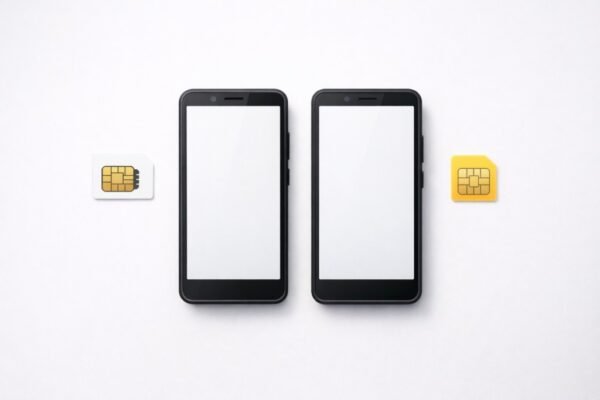
- Remove your SIM card (and microSD card if you have one).
4. Transfer to your new phone FIRST
Set up the new phone and confirm your photos, contacts, and apps made it over before wiping the old one. Keep the old phone for 24–48 hours as a safety net — I’ve seen “successful” transfers missing entire photo albums.
5. Wipe it properly
iPhone: Settings → General → Transfer or Reset → Erase All Content and Settings. Android: Settings → System → Reset → Erase all data. After the wipe, boot it once to confirm it lands on the fresh setup screen.
Trade-In Value Tips
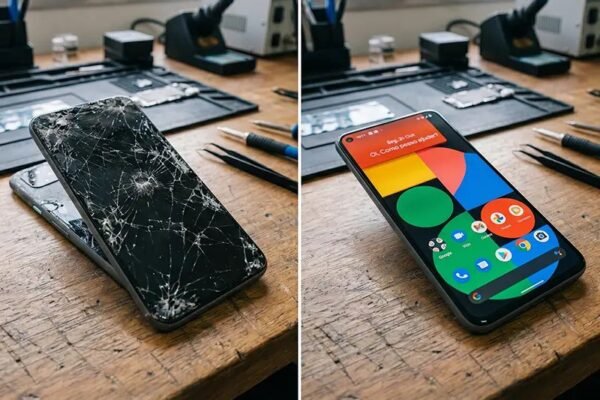
A phone in good cosmetic condition with a healthy battery fetches $50–$150 more than a beat-up one. Before trading in: clean it thoroughly, include the original box if you have it, and check trade-in values at Apple, Samsung, Best Buy, and carrier stores — they vary wildly. Apple often offers the most in store credit; carriers offer the most in bill credits (with strings attached). Also read our guide on repair vs. replace if you’re on the fence about upgrading at all.
For data-security peace of mind, the FTC recommends encrypting backups and wiping devices before disposal or trade-in.
What Most People Forget to Back Up
The standard backup misses things people cry about later. The forgotten list: 1) WhatsApp chats — not in iCloud/Google backups by default; back up inside WhatsApp (Settings → Chats → Chat backup) separately. 2) Authenticator app codes — Google Authenticator doesn’t sync by default (enable cloud sync!); Authy does. Losing these locks you out of everything — migrate before wiping. 3) Downloaded music/podcasts — Spotify/Apple Music downloads don’t transfer; note your playlists (they sync) and re-download later. 4) Health data — only in encrypted backups (iPhone) or Google Fit sync — verify it’s there. 5) Notes and voice memos — check they’re syncing to iCloud/Google, not stored “On My iPhone” locally. 6) Photos in messaging apps — save the keepers to your camera roll; app caches don’t survive transfers. Run through this list the night before — each takes two minutes, and each has ruined someone’s week.
How Long to Keep the Old Phone (The Safety Net)
Don’t wipe and trade in on day one. Keep the old phone for 7–14 days after setting up the new one. Why: transfers lie — “complete” transfers routinely miss photo albums, app logins, and message history, and you won’t discover the gaps until you need something. The protocol: set up the new phone, use it as your daily driver for a week, and every time you reach for the old phone for something missing, migrate that thing properly. After a clean week: wipe and sell/trade. Exception: carrier trade-in promos with deadlines — then do the transfer 3 days before the deadline, verify aggressively, and keep the old phone until the last safe day. Never: wipe the old phone at the carrier store counter while the rep watches — that’s how “oops, your photos didn’t transfer” becomes permanent. The old phone in your drawer is free insurance; use it.
Trade-In Value Maximization (The Details)
Squeeze every dollar from your old phone: Timing: trade values drop 15–25% when the new model launches — trade before announcement if possible. Condition: “Good” vs. “Fair” is often $50–$100 — a $10 screen protector and case for the phone’s final months pays off. Battery: some trade programs deduct for degraded batteries — a $70 battery replacement can add $100+ in trade value (do the math). Compare: Apple, Samsung, Best Buy, carrier, and Swappa/private sale — the spread is often $100+. Carrier “deals”: $800 trade-in credit usually means 24–36 months of bill credits (with plan requirements) — calculate the cash alternative honestly. Carrier-free phones fetch more (see our carrier info — carrier-free devices have broader resale). An hour of comparison shopping routinely finds $100+ more than the first offer.
iCloud vs. Computer Backup: Which Is Better?
For most people, the answer is both — they cover each other’s weaknesses. iCloud backup is automatic, wireless, and restores easily to a new phone, but the free 5GB is inadequate and restores require good Wi-Fi. Computer backup (Finder/iTunes, encrypted) is free, fast, and complete — including passwords and health data that iCloud sometimes skips — but requires you to remember to do it.
The practical setup: enable iCloud backup for daily automation (buy the $0.99/month 50GB or $2.99/month 200GB tier — it’s negligible), and do an encrypted computer backup monthly or before any major change (trade-in, repair, OS update). The computer backup is your deep archive; iCloud is your safety net.
Whichever you rely on, verify periodically: check the last successful backup date in Settings. A backup that silently stopped running months ago is the same as no backup.
Frequently Asked Questions
How do I know my backup actually worked?
iPhone: Settings → your name → iCloud → iCloud Backup shows the last successful backup time. Android: Settings → Google → Backup shows status. If the date isn’t recent, tap Back Up Now and watch for errors.
Does an iCloud backup include my photos?
Yes, if iCloud Photos is enabled — photos are part of the backup. But note: with iCloud Photos on, photos sync separately from the device backup, so they restore even without a full backup restore.
What doesn’t get backed up?
Content already in the cloud (emails, App Store apps themselves — though their data usually backs up), Face ID data, and Apple Pay cards. Downloaded Netflix/Spotify content doesn’t back up either — re-download it.
Can I back up to a computer without iTunes?
On Macs running Catalina or later, use Finder — iTunes is gone. On Windows, use Apple Devices app (newer) or iTunes (older). Both offer the same encrypted backup option.
How much iCloud storage do I really need?
Check Settings → General → iPhone Storage for your used space. Your iCloud plan needs to cover roughly that minus apps (which re-download). Most people land on 200GB ($2.99/month); heavy photo users need 2TB ($9.99/month).
Is it safe to back up to someone else’s computer?
An encrypted backup is password-protected, so it’s reasonably safe. But the computer’s owner could potentially access it — use your own machine when possible, and never leave the backup file on a shared computer.
The bottom line
Back up twice, verify once, sign out of iCloud/Google, transfer to the new phone, THEN wipe. In that order, no shortcuts. The 30 minutes this takes protects years of irreplaceable photos and keeps your accounts safe. And squeeze maximum trade-in value by shopping your phone around — the first offer is rarely the best.


3 Comments