
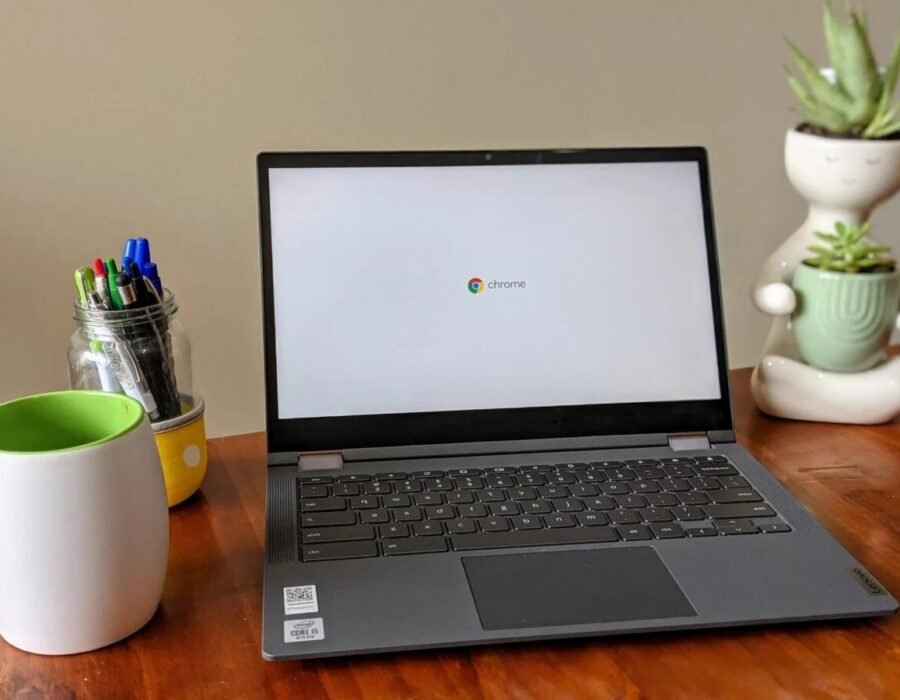
Chromebooks look like laptops and cost half as much — so what’s the catch? A Chromebook runs ChromeOS (basically the Chrome browser as an operating system), while a regular laptop runs Windows or macOS with full desktop software. That one difference determines everything. Here’s who should buy which.
What Is the Difference Between a Chromebook and a Regular Laptop?
Chromebooks: $200–$500, boot in seconds, immune to most malware, 10+ hour battery life, automatic updates, dead simple. But: no real Photoshop, no full Microsoft Office (web versions only), limited gaming, useless offline for many tasks, and some specialized software (engineering tools, pro video editors) simply doesn’t exist on ChromeOS. Regular laptops (Windows/Mac): $400–$2,000+, run everything, work fully offline — but need antivirus awareness, cost more, and demand more maintenance.
Who Should Buy a Chromebook
- Students — Google Classroom, Docs, web research: Chromebooks were made for this. Schools buy them by the million for a reason.
- Seniors / tech-averse users — nothing to break, nothing to update manually, nothing to infect. The simplest computing experience available.
- Secondary/travel laptops — a $250 Chromebook as a couch/travel machine while your main rig stays home.
- Kids — cheap, manageable with Google Family Link, and if it breaks you’re out $200 not $800.
Who Should NOT Buy a Chromebook
Don’t buy a Chromebook if: you need specific Windows/Mac software for work or school (check with your employer/school first — “I need the desktop version of Excel with macros” kills the Chromebook option), you’re a gamer (browser games only), you edit video professionally, you need offline work beyond basic docs, or you want a machine that lasts 6+ years (Chromebooks have a defined Auto Update Expiration date — check it before buying; it’s typically 8 years from release, after which security updates stop). Also avoid the cheapest $150 Chromebooks — 4GB RAM and 32GB storage make even ChromeOS painful; $250–$350 with 8GB RAM is the real sweet spot.
The Middle Ground
Modern Chromebooks run Android apps and some run Linux apps, which closes the gap for many users — you can get a real code editor, GIMP, or Steam (beta, on higher-end models). And Windows laptops now have a “S mode” that’s similarly locked down. The lines are blurring, but the core tradeoff remains: simplicity and price vs. capability and flexibility. For a deeper speed comparison on aging machines, see speeding up an old laptop — sometimes the answer is optimizing what you have.
Google details ChromeOS capabilities on the official Chromebook page if you want the full spec picture.
Chromebooks for Business: The Honest Assessment
Can a business run on Chromebooks? For many: yes. Where they shine: front-desk/kiosk use (kiosk mode locks them to one app — perfect for check-in stations), sales teams living in Salesforce/web apps, and cost control ($300 × 20 employees = $6,000 vs. $20,000 for Windows laptops). Management: Google Workspace admin manages fleets remotely — push apps, enforce policies, wipe lost devices. Where they fail: specialized software (accounting desktop apps, industry-specific Windows tools), offline work, and power users. The hybrid answer: Chromebooks for 80% of staff + a few Windows machines for the specialists. Security bonus: ChromeOS’s sandboxing + verified boot makes them the most secure endpoint for non-technical staff — fewer IT headaches, fewer ransomware vectors. Try before you fleet: pilot with 3–5 users for a month.
Linux on Chromebook: Opening Up the Other Half
Modern Chromebooks run Linux apps (Settings → Advanced → Developers → Linux development environment) — and it changes the equation. What it opens up: VS Code, GIMP, LibreOffice, Firefox, and thousands of Linux apps — real software, not web toys. Performance: surprisingly good on 8GB models; sluggish on 4GB (another reason for the 8GB minimum). Who cares: students learning to code, tinkerers, and anyone who hits ChromeOS’s walls but loves the hardware value. Limitations: no GPU acceleration for most apps, some jank, and it uses 10GB of storage. The verdict: Linux mode turns a $300 Chromebook into a legitimate secondary development machine — not a replacement for a real laptop, but 80% of the way there for 30% of the price. Enable it on day one if you’re technical — it costs nothing and you’ll find uses.
Chromebook Buying Guide: Specific Models Worth It
The 2026 shortlist: Best overall ($350): Lenovo Flex 5i Chromebook Plus — 8GB RAM, 128GB, 2-in-1 touchscreen, Intel i3. The default recommendation. Budget pick ($280): Acer Chromebook Plus 514 — 8GB RAM, solid build, great screen for the price. Premium ($600): ASUS Chromebook Plus CX34 — approaching Windows-laptop build quality. Kids ($200): Lenovo 100e Chromebook — ruggedized, cheap, replaceable. What to check before buying any: the Auto Update Expiration date (chrome://settings → About — must be 2030+, ideally 2032+), 8GB RAM minimum, and IPS screen (avoid TN panels — terrible viewing angles). Where to buy: Best Buy open-box and Acer Recertified store routinely beat new prices by 20–30%. Avoid: anything with 4GB RAM, anything expiring before 2030, and no-name brands (support evaporates).
Chromebook Peripherals: What Works
ChromeOS plays well with accessories: Printers: most Wi-Fi printers work (see our printer setup guide — same network principles). External monitors: USB-C/HDMI — extended desktop supported, works well. Mice/keyboards: any USB/Bluetooth — no drivers needed. External storage: USB drives, SD cards — read/write, including NTFS. What doesn’t: specialized hardware needing Windows drivers (certain scanners, proprietary dongles, some printers over USB). Check before you need it: plug in critical peripherals during the return window — 14 days to discover incompatibilities. For most users: if it works via USB/Bluetooth standards (not proprietary drivers), it works on ChromeOS. The ecosystem is more compatible than the reputation suggests.
Chromebook Buying Tips: What to Look For
Not all Chromebooks are equal, and the cheapest ones cut corners that matter. Look for: 8GB RAM (4GB Chromebooks stutter with multiple tabs — the single most important spec), an IPS display (cheap TN panels look washed out from any angle), and a recent processor (Intel N100 or better in 2026 budget models).
Check the Auto Update Expiration (AUE) date before buying — especially used. Google lists AUE dates for every model; a Chromebook with 2 years of updates left is a bad buy at any price. Aim for 6+ years remaining. New budget Chromebooks ($250–$350) typically ship with 8–10 years.
For students: prioritize durability and battery life over raw specs — classroom Chromebooks get abused. For adults wanting a travel/secondary machine: prioritize screen quality and weight. And if there’s any chance you’ll need Windows software later, the price gap to a budget Windows laptop ($400+) may be worth paying for flexibility.
Frequently Asked Questions
Can Chromebooks run Microsoft Office?
Web versions of Word/Excel/PowerPoint run fully in the browser (free with a Microsoft account). The full desktop Office apps don’t run on ChromeOS — but for most users, the web versions plus Google Docs cover everything.
Can you install Windows on a Chromebook?
Technically possible on some models via developer mode and firmware mods, but difficult, unreliable, and it defeats the purpose. If you need Windows, buy a Windows laptop.
Are Chromebooks good for college students?
Excellent for most majors — writing, research, streaming, video calls all work perfectly. Exceptions: engineering (CAD software), film/design (Adobe suite), computer science (some dev tools) — check your program’s software requirements first.
Do Chromebooks need antivirus?
No traditional antivirus needed — ChromeOS’s sandboxed, verified-boot architecture makes conventional malware nearly impossible. Just keep the system updated and avoid sketchy Chrome extensions (the actual attack vector).
What is the difference between ChromeOS and ChromeOS Flex?
ChromeOS Flex is the free version you can install on old Windows/Mac hardware to convert it into a Chromebook-like machine — a great way to revive an aging laptop for basic use. Full ChromeOS ships on actual Chromebooks with deeper integration.
Can Chromebooks print?
Yes, via the built-in printing system supporting IPP printers (most Wi-Fi printers from the last decade). Setup is usually automatic — the printer appears when on the same network. Very old USB-only printers may not work.
The bottom line
Buy a Chromebook if your life happens in a browser — students, seniors, kids, and casual users save hundreds and gain simplicity. Buy a Windows/Mac laptop if you need specific software, game, create professionally, or want maximum longevity. At $250–$350 with 8GB RAM, a Chromebook is the best value in computing for the right person — and a frustrating paperweight for the wrong one. Know which you are before you buy.


1 Comment