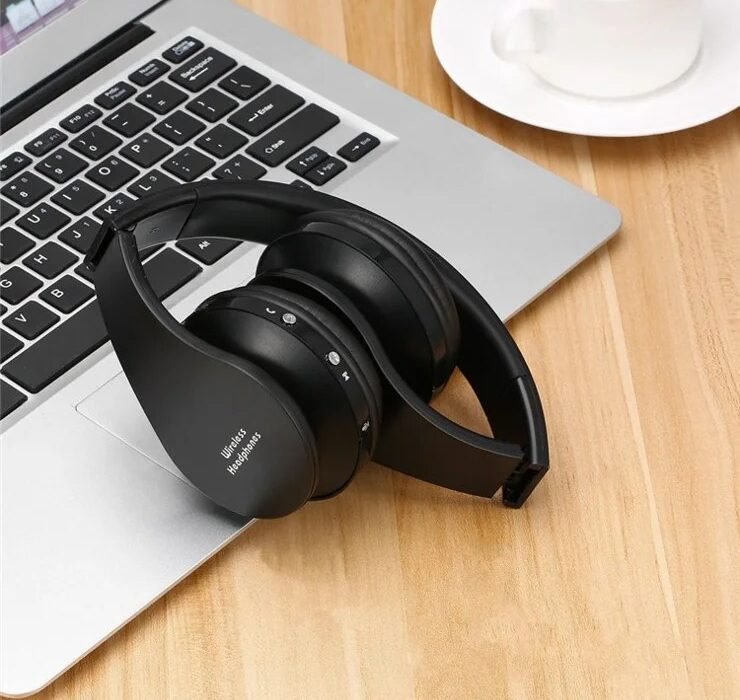
Headphones pair with your phone instantly but your laptop acts like they don’t exist? The cause is almost always: the headphones are still connected to your phone, the laptop’s Bluetooth stack glitched, or you’re hitting the multipoint trap. Here’s the fix sequence that works.
Why Won’t My Bluetooth Headphones Pair With My Laptop?
Bluetooth headphones can typically maintain one or two active connections. If they’re connected to your phone, many won’t even enter pairing mode for the laptop — they’ll just silently reconnect to the phone. Step zero: turn off Bluetooth on your phone (or disconnect the headphones in its Bluetooth settings). This resolves probably half of all “won’t pair” complaints instantly.
The Pairing Sequence That Works
- Put the headphones in pairing mode properly — usually a long-press (5–10 seconds) until the LED flashes blue/red or you hear “pairing.” A quick press just powers them on; check your manual for the exact gesture.
- On Windows: Settings → Bluetooth & devices → Add device → Bluetooth. If they appear but fail, remove the device first, then re-add.
- On Mac: System Settings → Bluetooth — if they’re listed, click the (i) and “Forget,” then re-pair fresh.
- Reset the headphones if all else fails — every brand has a button combo (usually in the manual or a 10-second Google search).
The Multipoint Trap
Many modern headphones (Sony WH-1000XM4/5, AirPods, Bose QC) support multipoint — staying connected to two devices at once. Sounds great, works terribly in practice: the headphones guess wrong about which device you mean, audio routes to the idle phone while you’re in a laptop Zoom call, and switching requires app fiddling. My recommendation: disable multipoint in the headphones’ app (Sony Headphones Connect → System → “Connect to 2 devices simultaneously” → off) and manually switch connections. One deliberate connection beats two confused ones. The 10 seconds to switch manually saves endless “can you hear me?” embarrassment on calls.
Deeper Issues
- Stale Bluetooth drivers (Windows): Device Manager → Bluetooth → update the adapter driver. Windows Update often misses these.
- Too many paired devices: Headphones remember 8+ devices and get confused — clear the pairing list (factory reset the headphones).
- Interference: USB 3.0 ports, microwaves, and crowded 2.4GHz Wi-Fi all disrupt Bluetooth. Move the laptop’s USB dongles away from the Bluetooth antenna side.
- Codec mismatch: If audio connects but sounds like a phone call, Windows grabbed the “Hands-Free” profile — in Sound settings, set the Stereo profile as default for music.
Bluetooth on Planes and in Crowds (Hostile Environments)
Bluetooth fails most where you need it most: planes (200+ devices in a metal tube), conferences, gyms. Why: Bluetooth shares the 2.4GHz band with Wi-Fi — in dense environments, it’s a traffic jam. Survival tactics: 1) Wired backup: pack the 3.5mm cable (or USB-C audio adapter, $9) — zero interference, zero latency, zero battery anxiety. Audiophiles are right about one thing: wired always works. 2) Airplane mode + Bluetooth on: reduces your device’s own interference. 3) Sit away from the crowd if possible — every 10 feet helps. 4) Download, don’t stream: offline content removes the Wi-Fi half of the interference. The $9 insurance policy (USB-C to 3.5mm adapter) lives in your bag permanently — future you, at 35,000 feet with dying Bluetooth, says thanks.
Audio Delay: Fixing Bluetooth Lip-Sync
Watching video with Bluetooth? The delay is real (100–300ms — noticeable lip-sync error). Fixes: 1) Use aptX Adaptive or LDAC (if both devices support — check specs) — lower latency codecs cut delay to ~80ms (imperceptible). 2) App settings: YouTube, Netflix, and VLC have audio-delay adjustments — nudge until lips match. 3) Gaming: use wired or 2.4GHz wireless gaming headsets (not Bluetooth) — Bluetooth latency ruins competitive play. 4) AirPods + Apple TV/iPhone: Apple’s H-chip syncs automatically — the one ecosystem where it just works. The truth: Bluetooth was designed for phone calls, not video — the delay is physics (encoding + transmission + decoding). For critical viewing: wired. Always.
When to Replace vs. Repair Headphones
Headphones die in predictable ways: 1) Battery won’t hold charge (2–3 years) — most quality brands offer battery service ($50–$80, Sony/Bose/Apple) — worth it on $300+ headphones, not on $50 ones. 2) Ear cushions disintegrated — $15–$25 replacements (Wicked Cushions, Dekoni) make them feel new — always repair this. 3) One side dead — often the internal wire; repair shops charge $40–$70; DIY if you’re handy. 4) Bluetooth radio failing (won’t pair with anything) — usually fatal; replace. The 50% rule (see our phone repair framework — same logic): repair under half the replacement cost. Upgrade triggers: wanting multipoint that works, better ANC, or USB-C — legitimate reasons, not just shiny.
Bluetooth Multipoint: Making It Actually Work
If you insist on multipoint, optimize it: Which devices: pair the two you switch between most (phone + laptop) — not three (the third causes chaos). Priority settings: Sony/Bose apps let you set call priority (phone wins calls) vs. media priority — set calls to phone, media to laptop. The manual override: when it guesses wrong, pause media on the unwanted device (don’t just lower volume — paused devices release the connection). Known good combos: Sony WH-1000XM5 and AirPods handle multipoint best; budget multipoint is universally terrible — disable it there. When to give up: if you’re manually switching more than twice daily, disable multipoint and switch manually — the “convenience” is costing more time than it saves. Multipoint is a promise; manual switching is a guarantee.
Quick-Fix Flowchart (Save This)
Follow in order until it works: 1) Phone Bluetooth off? → No: turn it off, retry. 2) Headphones in true pairing mode (long-press, flashing)? → No: do it right. 3) Removed from laptop’s paired list and re-added? → No: forget + re-pair. 4) Headphones reset? → No: factory reset them. 5) Laptop Bluetooth driver updated? → No: update it. 6) Still dead? → Try another device (isolates headphones vs. laptop). 90% resolve by step 3. Print this; Bluetooth will fail again — it always does. The flowchart beats frustration every time.
Apple’s Bluetooth troubleshooting pages cover the Mac-specific side — resetting the Bluetooth module and removing preference files that survive normal resets. And for the headphones themselves, our phone troubleshooting guides share the same reset-first philosophy that fixes most wireless issues.
Bluetooth Versions Explained: Does It Matter?
Bluetooth 5.0, 5.2, 5.3, 5.4 — the version numbers keep climbing, but what do you actually get? Each version improves range, speed, power efficiency, and audio quality incrementally. The practical differences: Bluetooth 5.0+ doubled range and speed over 4.2; 5.2 added LE Audio (better sound at lower power); 5.3 improved connection reliability.
Here’s the catch: both devices need the newer version to benefit. Bluetooth 5.3 headphones paired with a Bluetooth 5.0 laptop get 5.0 features. And for audio quality specifically, the codec matters more than the version — LDAC and aptX Adaptive deliver audibly better sound than basic SBC, regardless of Bluetooth version.
For pairing problems, version mismatches rarely cause failures — Bluetooth is backward compatible. If pairing fails, it’s almost always mode/sequence issues or driver problems, not version incompatibility.
Frequently Asked Questions
What is multipoint Bluetooth?
The ability to stay connected to two devices simultaneously (e.g., laptop + phone), switching automatically based on activity. Great in theory; in practice, multipoint causes many pairing confusions — disable it during troubleshooting.
Why does Bluetooth audio lag during videos?
Codec latency: SBC has ~200ms delay, noticeable as lip-sync issues. aptX Low Latency (~40ms) and LC3 fix this. Some laptops/apps compensate with audio delay adjustment — check your video player’s settings.
How far does Bluetooth actually reach?
Class 2 devices (most headphones/phones): ~33 feet (10m) line-of-sight, less through walls. Bluetooth 5.0+ extends theoretical range to ~800 feet, but real-world with obstacles is far less. Walls, especially concrete, kill range.
Can Bluetooth be hacked?
Theoretically yes (BlueBorne, KNOB attacks), practically rare — most require proximity and have been patched. Keep devices updated, don’t accept unexpected pairing requests, and turn Bluetooth off when not in use in crowded places.
Why do my headphones disconnect when I put my phone in my pocket?
Your body absorbs 2.4GHz signals surprisingly well. Combined with a weak Bluetooth radio (common in budget headphones), pocket placement can drop the connection. Phone in a back pocket is worst; front pocket or armband is better.
Do Bluetooth and Wi-Fi interfere?
Yes — both use 2.4GHz. Heavy Wi-Fi traffic can cause Bluetooth audio stutters. Using 5GHz Wi-Fi for your laptop/phone reduces interference significantly. This is a common cause of mysterious audio dropouts.
The bottom line
Disconnect from your phone first, enter real pairing mode (long-press), remove-and-re-pair on the laptop, and disable multipoint if switching misbehaves. That sequence fixes 90% of pairing failures. For the stubborn 10%, update Bluetooth drivers and factory-reset the headphones. Bluetooth is a 25-year-old standard held together with hope — patience and the right sequence beat anger every time.